AI Assistant
1. Overview
1.1 What is the AI Assistant?
The AI Assistant (also labeled Ask AI) is a conversational AI agent for the Developer Console. It lets you ask questions in natural language and receive guided answers about:
- APIs, SDKs, and integrations
- Developer Console workflows (applications, users, submissions, marketplace)
- Logs, deployments, and troubleshooting
- Getting started with Candescent platform capabilities
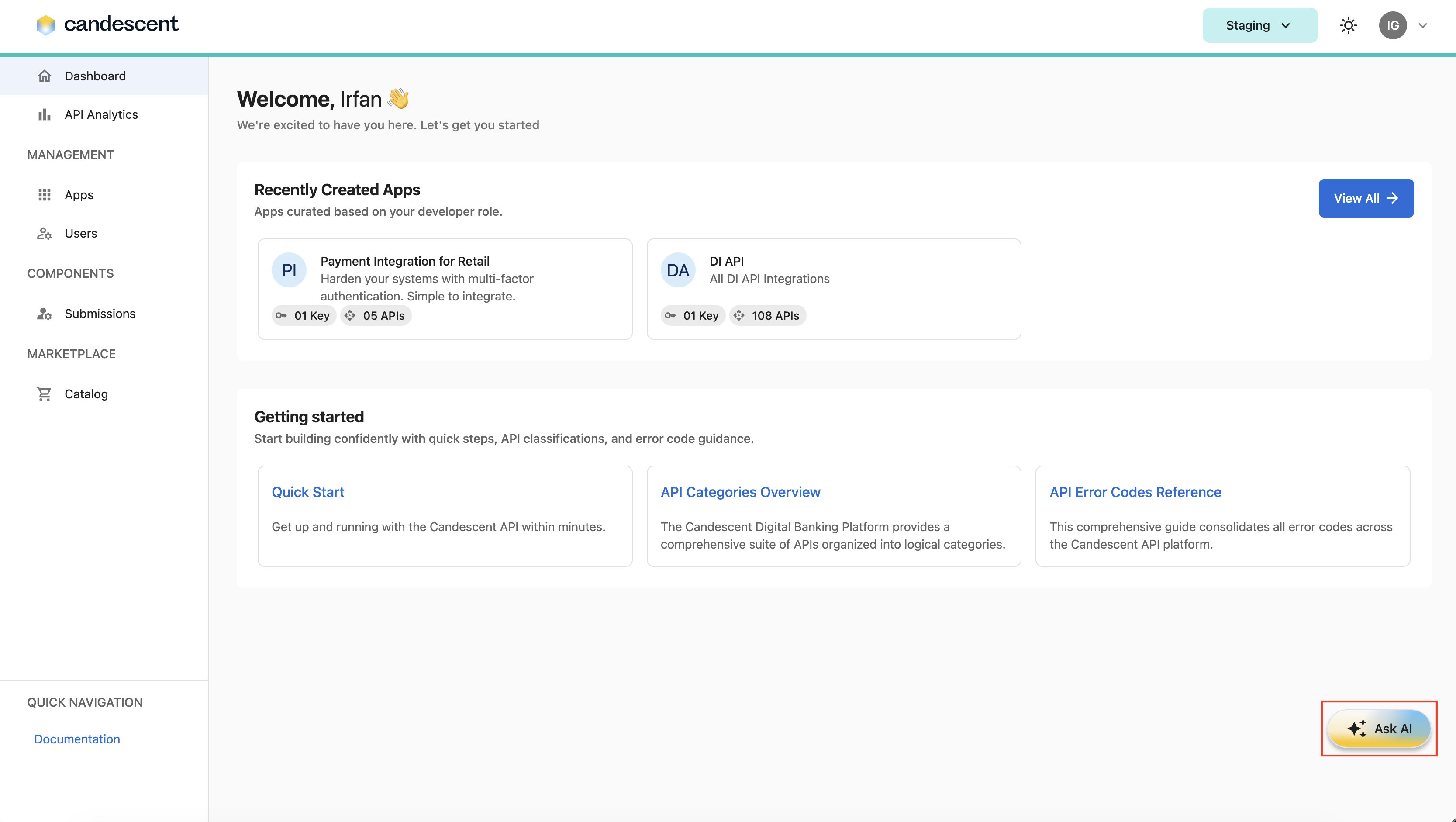
The assistant opens as a full-screen chat experience and is also available as a floating Ask AI button while you work in the console.
1.2 Key Benefits
- Faster onboarding: Get step-by-step guidance without leaving the console.
- Page-aware help: The assistant can see which Developer Console screen you are on and use that information when answering your question(s).
- Suggested starting points: Pre-built prompt cards help you begin common tasks quickly.
- Conversation history: Resume, pin, or delete recent chats from the Recent History panel.
1.3 Who Should Use the AI Assistant?
| Role | Typical use |
|---|---|
| Admin | User management, onboarding team members, console capabilities. |
| Developer | API integration help, widget guidance, debugging workflows. |
| Spectator | May have limited or view-only access depending on your organization's settings. |
- Access to the AI Assistant is controlled by your organization's role and permissions.
- If you cannot send messages, contact your administrator to request access.
2. Access and Prerequisites
To use the AI Assistant, you must:
- Sign in to the Developer Console.
- Have a role with access to the AI Assistant (full or limited, depending on your organization's configuration).
2.1 Accessing the AI Assistant
You can open the assistant in two ways:
Option A — Floating Ask AI button
- Sign in to the Developer Console.
- From most dashboard screens, locate the Ask AI floating button (bottom-right of the screen).
- Click Ask AI to open the full-screen assistant.
The floating button is not shown on the AI Assistant screen itself or on the Marketplace Product Catalog screen.
Option B - Direct URL
- Use the direct AI Assistant URL to access the assistant.
2.2 Welcome Screen
When you open the assistant with no active conversations, you will see the welcome screen with a heading, description, suggested prompt cards, and the message composer.
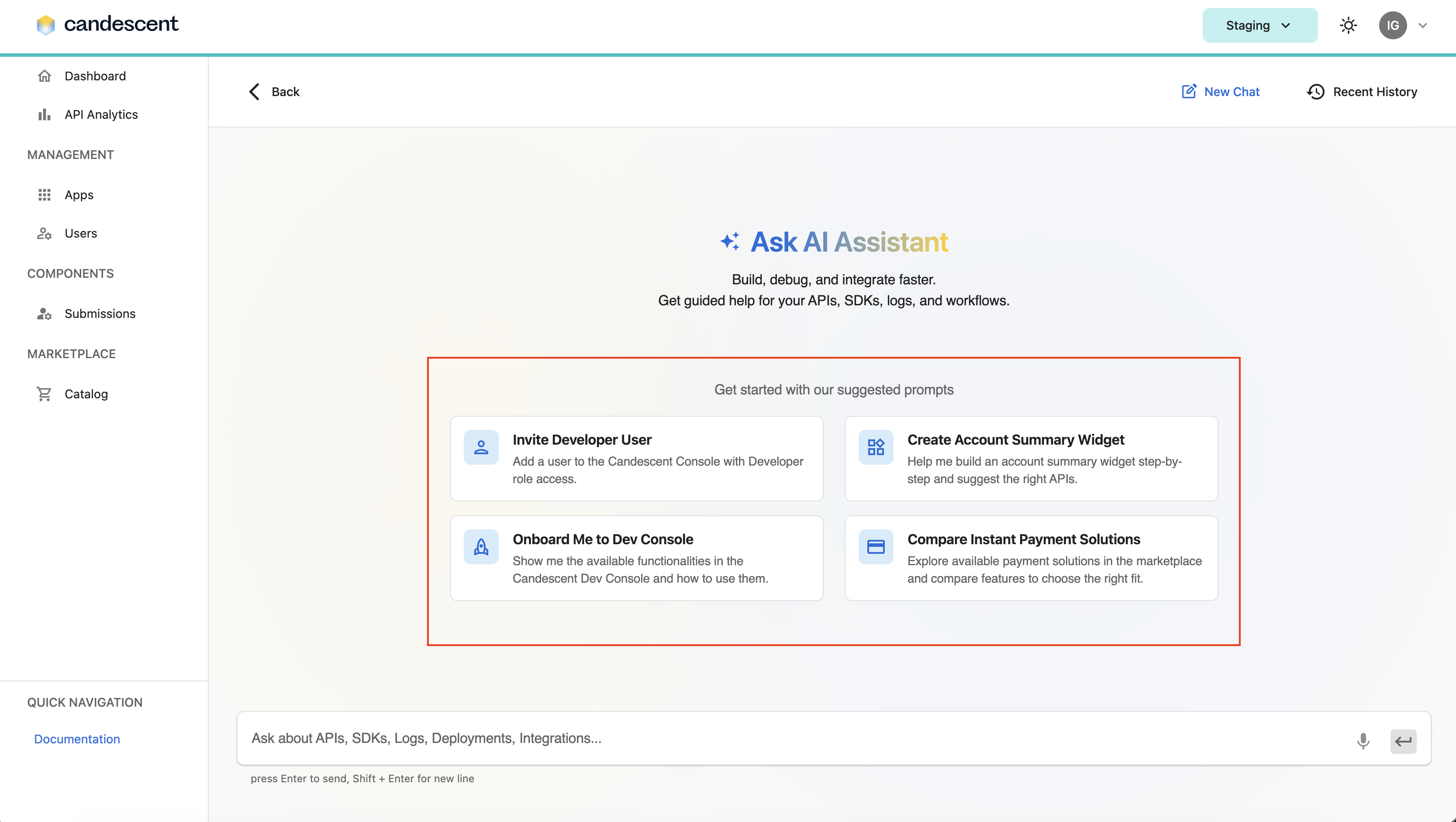
| UI Element | Description |
|---|---|
| Ask AI Assistant heading | Welcome title with assistant branding. |
| Description | Build, debug, and integrate faster. Get guided help for your APIs, SDKs, logs, and workflows. |
| Suggested prompt cards | Four starter prompts to help begin a conversation. |
| Message composer | Text input at the bottom of the screen. |
2.3 Suggested Prompts
Click any suggested prompt card to start a new conversation. The card's description is sent as your first message.
| Prompt title | What it helps with |
|---|---|
| Invite Developer User | Add a user to the Developer Console with developer role access. |
| Create Account Summary Widget | Step-by-step widget guidance and API recommendations. |
| Onboard Me to Dev Console | Overview of Developer Console features and how to use them. |
| Compare Instant Payment Solutions | Explore and compare marketplace payment solutions. |
- Selecting a suggested prompt always starts a new chat.
- If you do not have permission to chat, prompt cards appear disabled with a lock icon.
3. Permissions & Access Request Process
3.1 If You Have Full Access
You can open the assistant, view Recent History, send messages, use suggested prompts, start a new chat, use follow-up suggestion chips, and pin, unpin, or delete conversations.
3.2 If You Have Limited Access
You can open the assistant and may view Recent History, but cannot send messages. The composer, New Chat, and suggested prompt cards are disabled. A lock icon appears on disabled prompt cards.
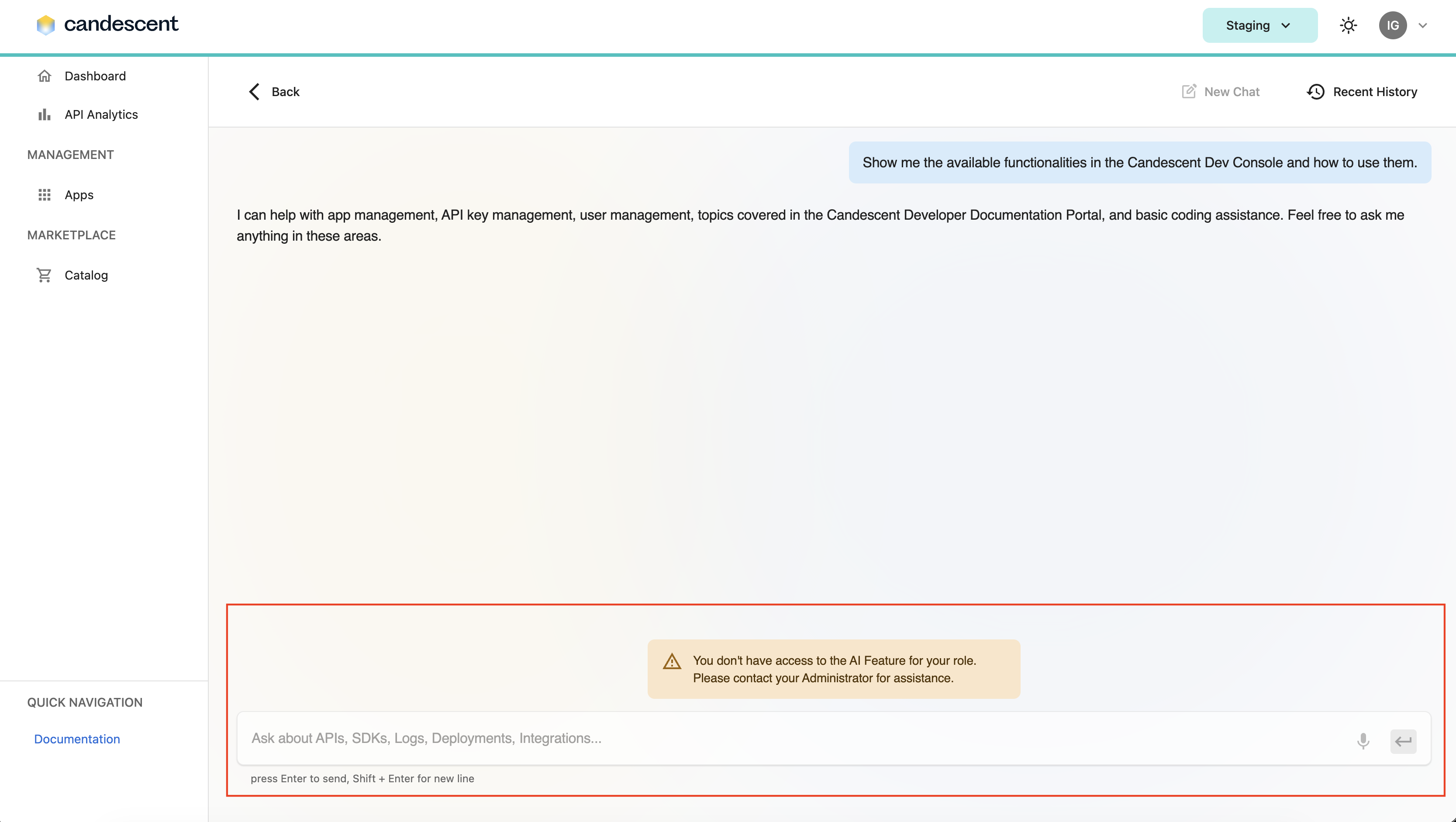
To request access: Contact your organization's administrator.
3.3 If You Do Not Have Access
The Ask AI button may not appear, or you may not be able to open the assistant screen. Contact your administrator if you believe you should have access.
3.4 Role-Based Access (Typical)
| Role | Expected access |
|---|---|
| Admin | Full assistant access (subject to organization configuration). |
| Developer | Full assistant access (subject to organization configuration). |
| Spectator | Limited or no access depending on organization policy. |
4. Actions
4.1 Chatting with the Assistant
Sending a Message
- Click in the message input at the bottom of the screen.
- Type your question about APIs, SDKs, logs, deployments, or integrations.
- Press Enter to send. Press Shift + Enter to add a new line without sending. You can also click Send.
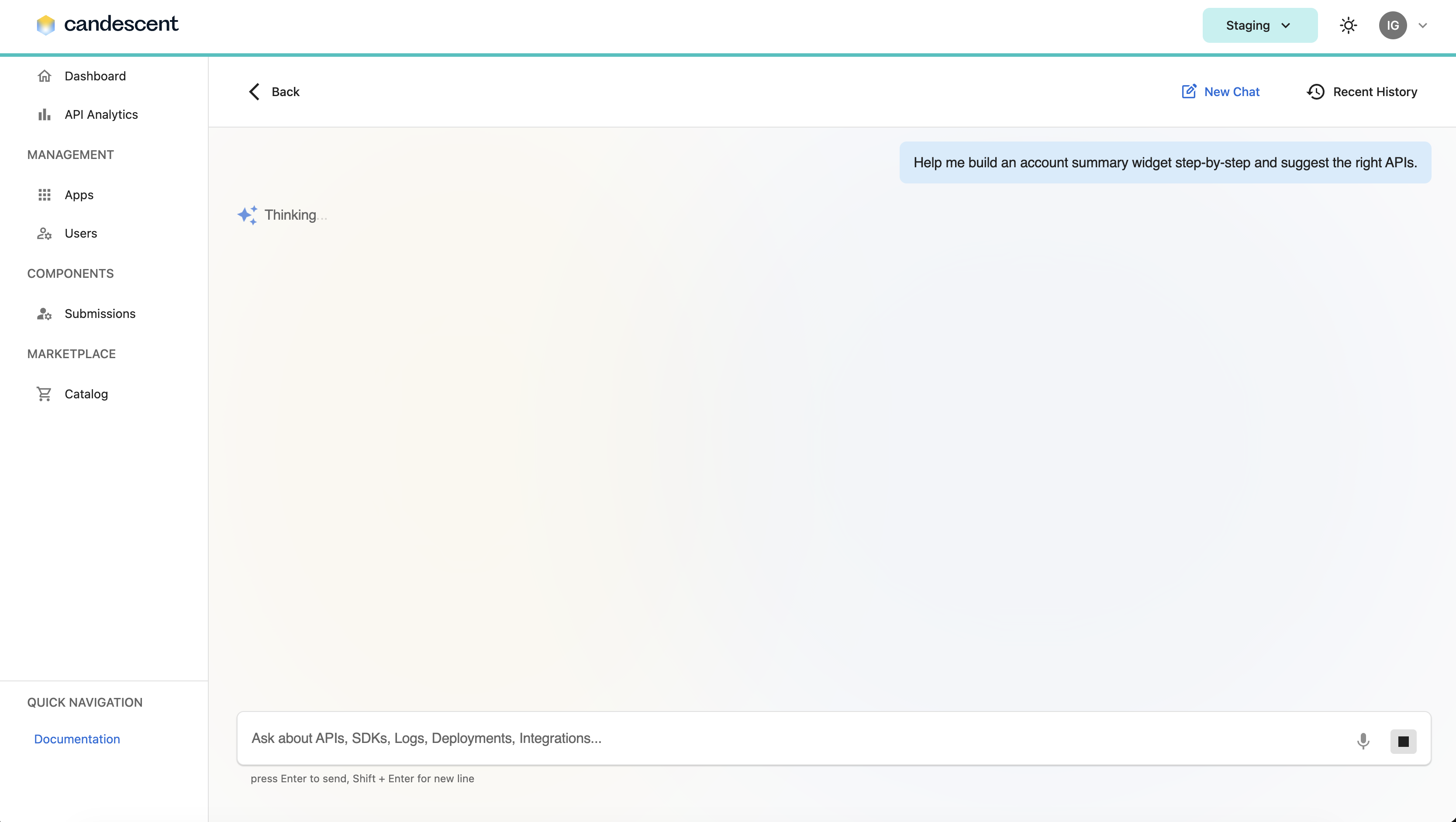
While the assistant is preparing a reply, the send control is disabled and a loading state is shown.
Reading Responses
Assistant replies appear in the chat thread below your message. Responses may include explanations, step-by-step instructions, examples, documentation links, and follow-up suggestion chips.
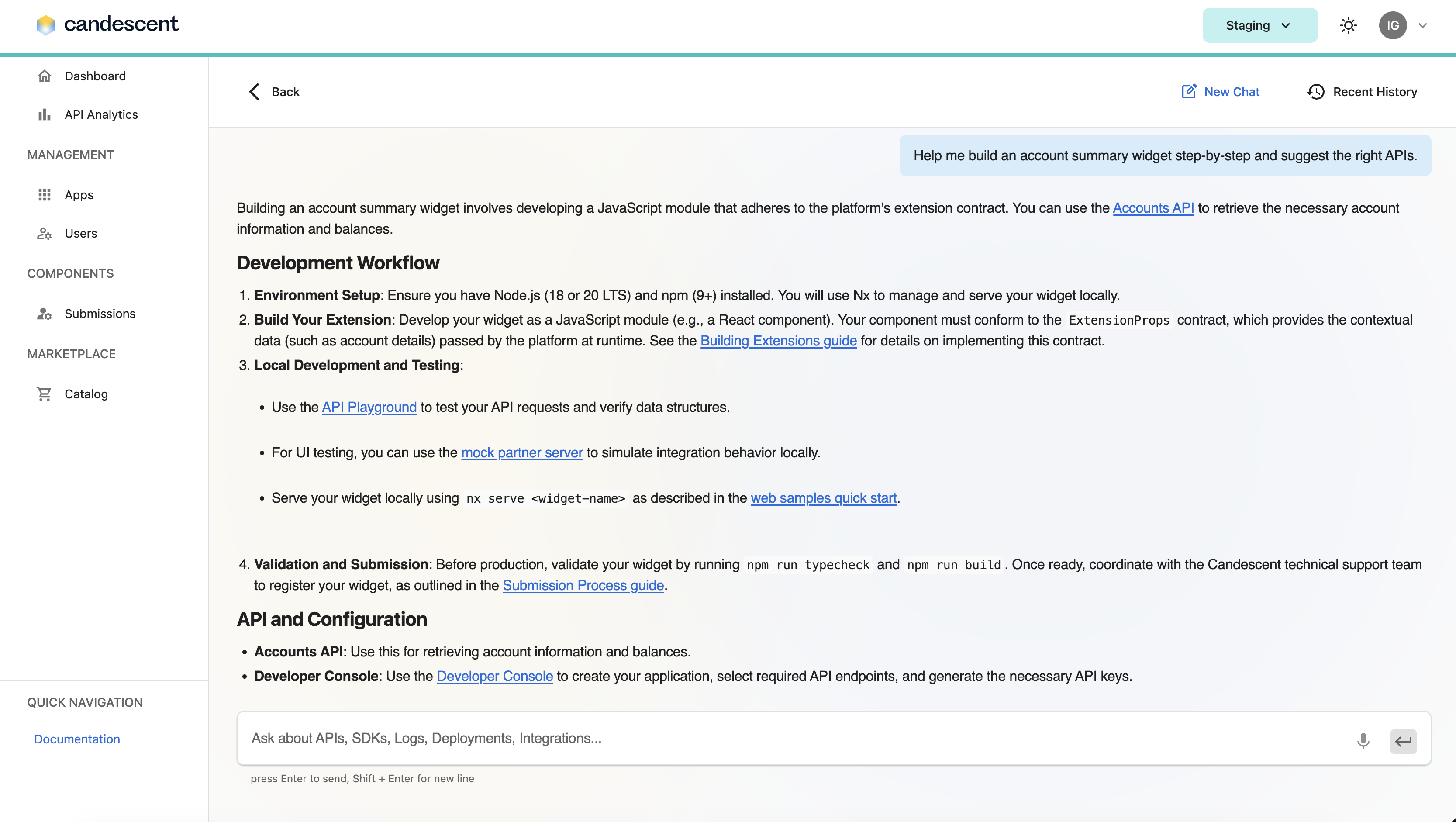
Follow-up suggestions: After some replies, clickable suggestion chips appear below the assistant message. Click a chip to continue the current chat (this does not start a new session).
Toolbar Actions
| Action | Description |
|---|---|
| Back | Return to the previous console screen. |
| New Chat | Clear the current conversation and start fresh. |
| Recent History | Open your list of recent conversations. |
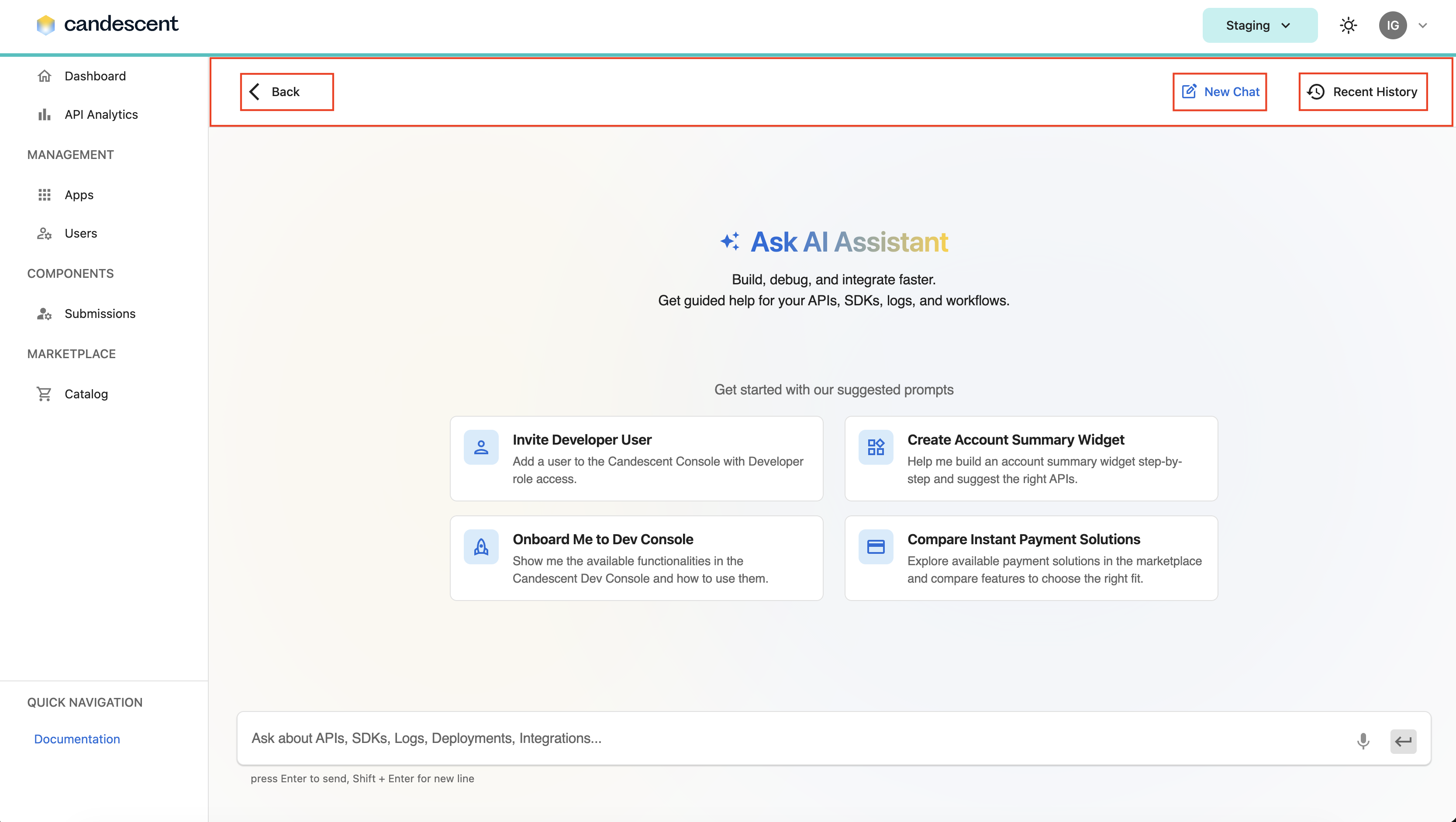
4.2 Managing Conversations
Starting a New Chat
- Click New Chat in the toolbar.
- The draft message is cleared, the chat thread is reset, and a new conversation begins when you send your first message.
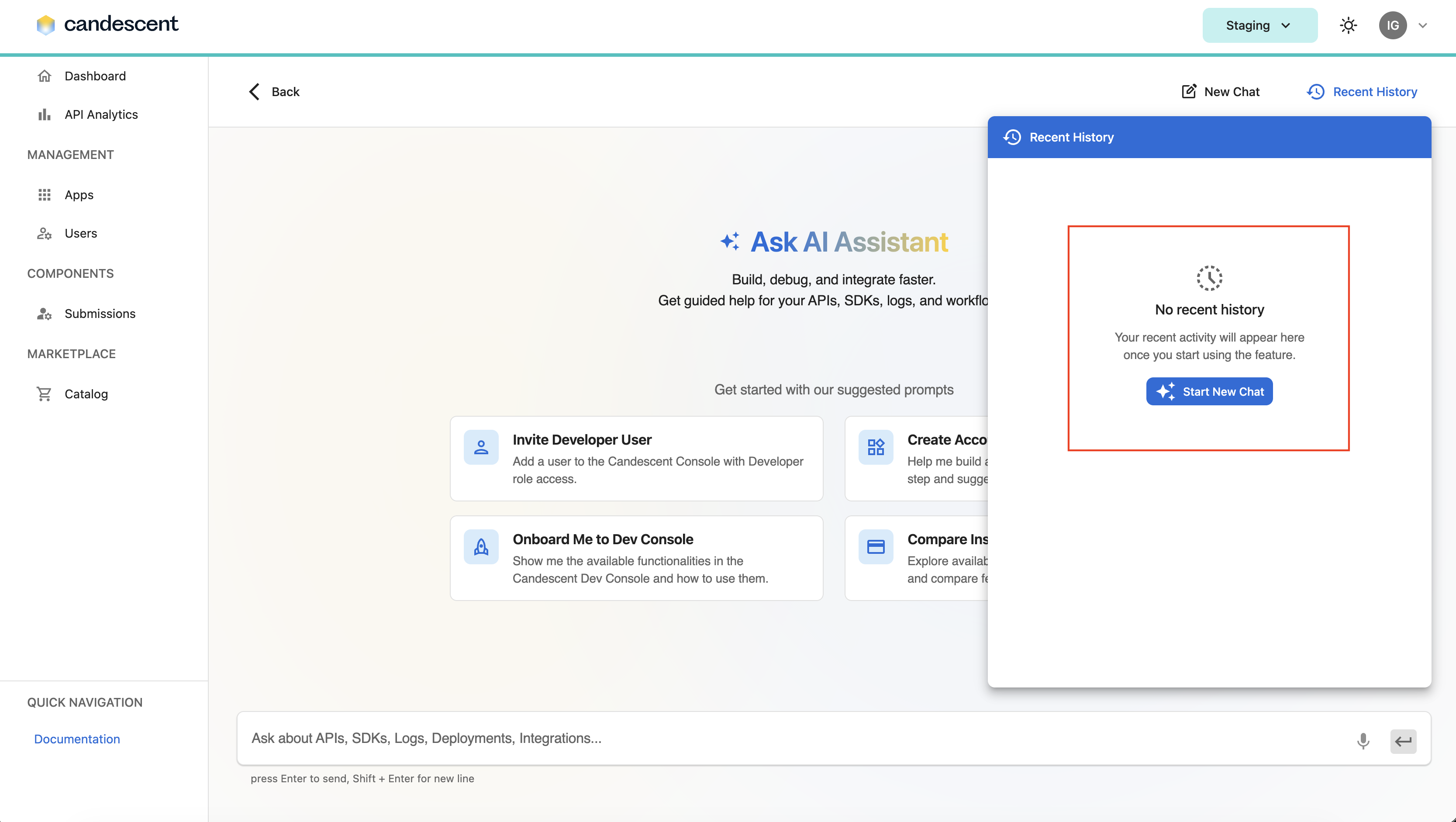
You can also click Start New Chat from Recent History when no prior conversations exist.
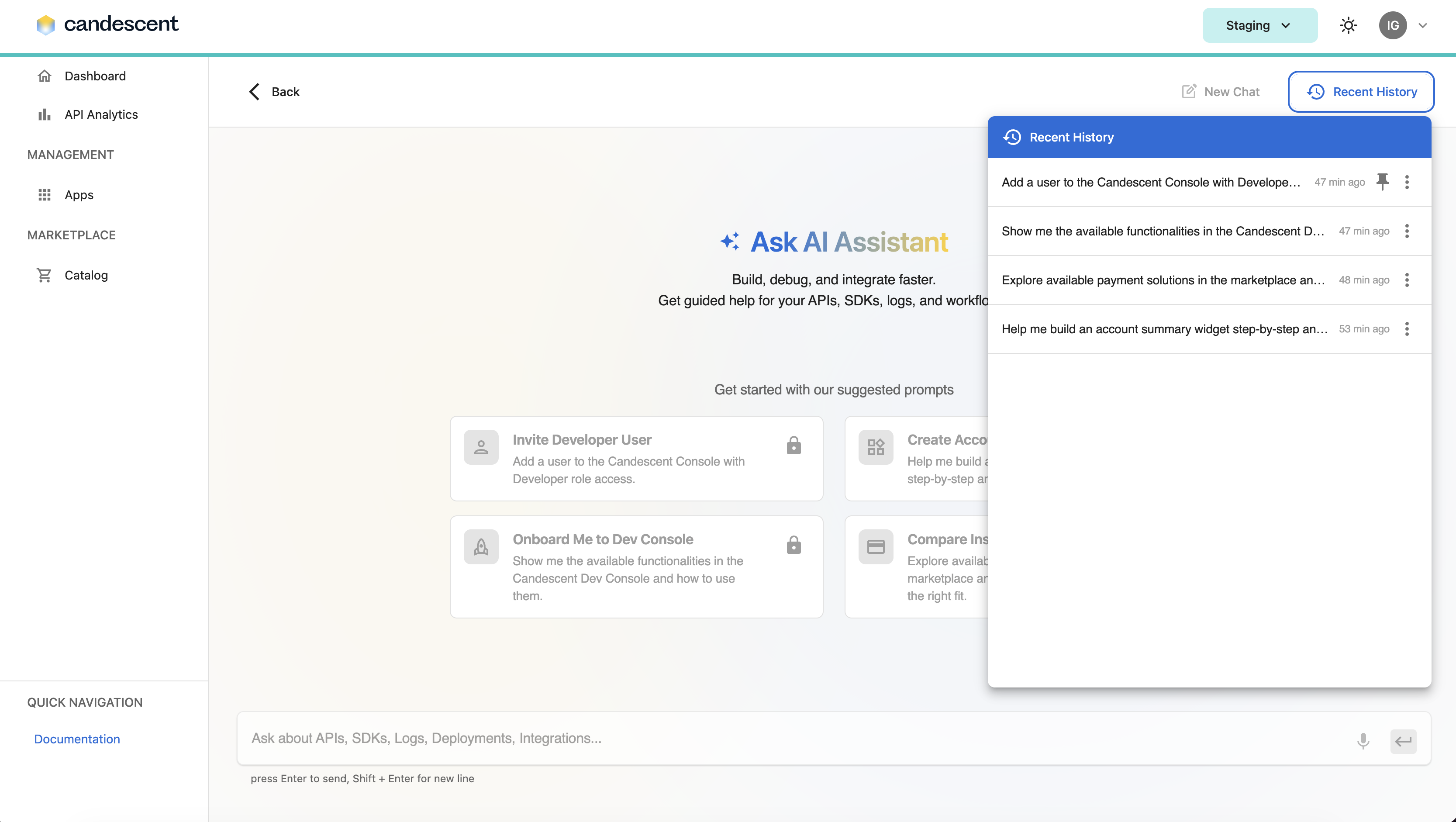
Recent History
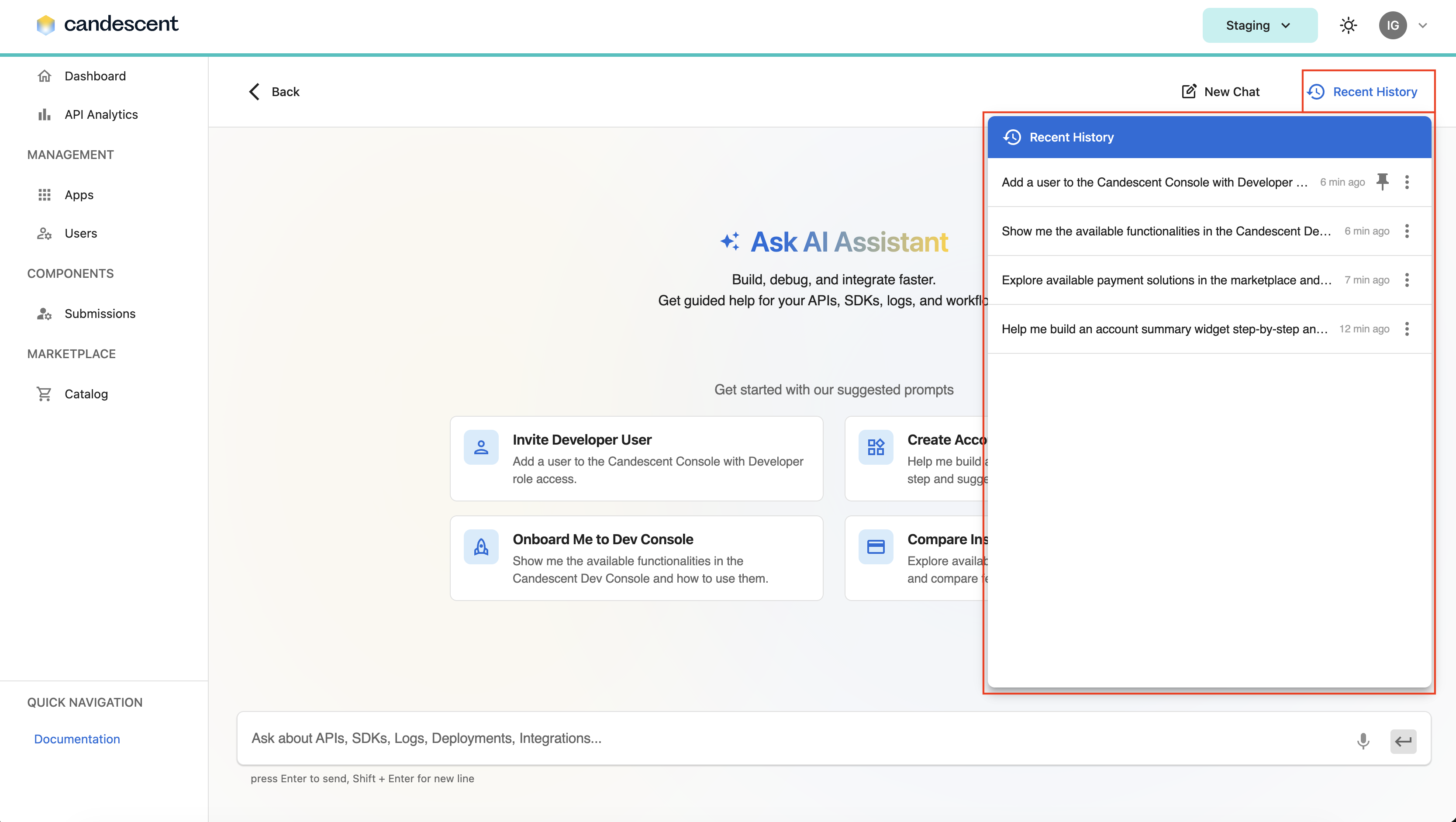
Click Recent History in the toolbar to open the history panel.
Recent History with old conversations:
Recent History when there is no data:
Recent History when there is an error loading data:
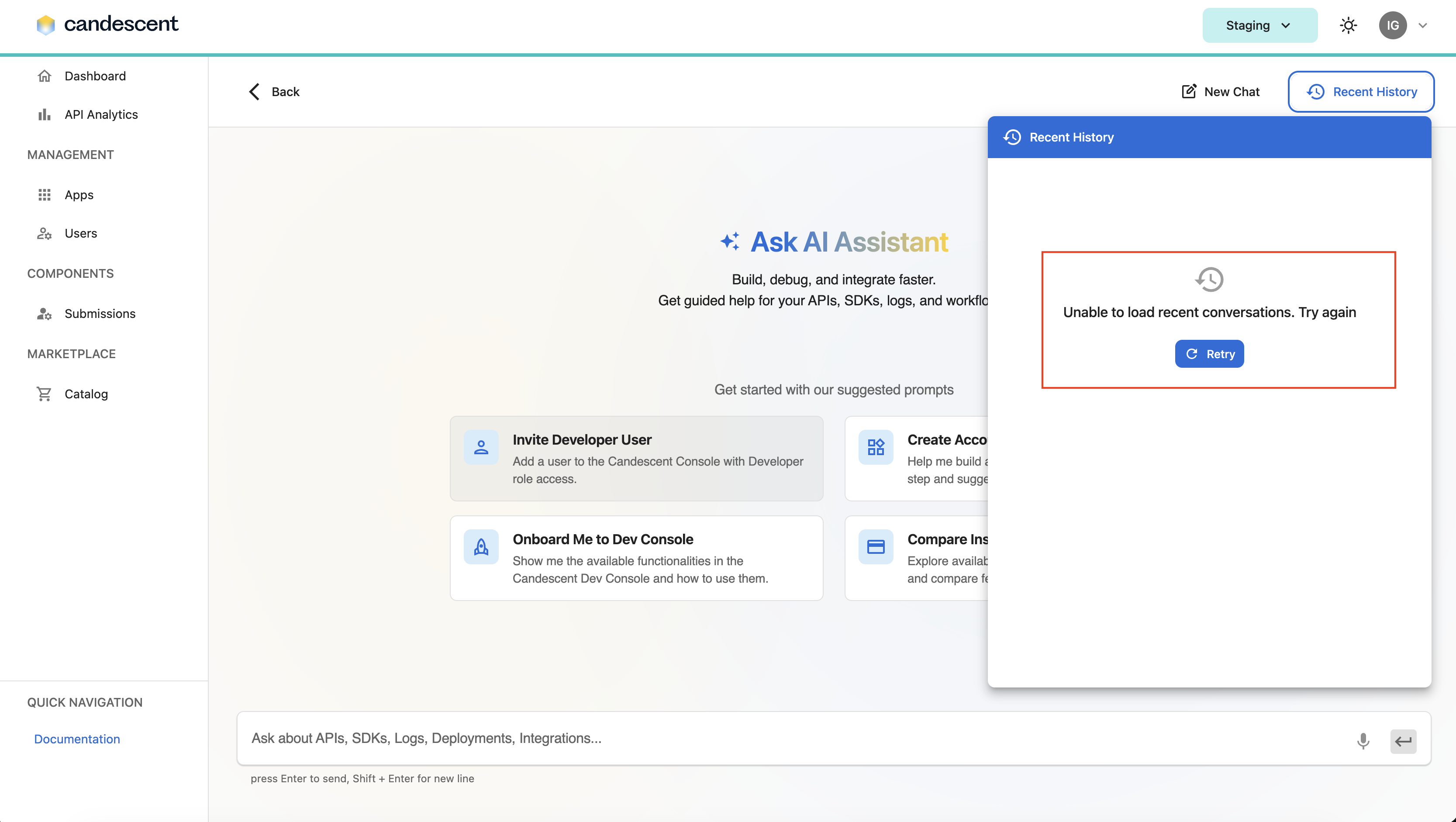
| State | Description |
|---|---|
| Loading | History is being retrieved. |
| Empty | No conversations yet — use Start New Chat. |
| List | Recent conversations, most recently updated first. |
| Error | Unable to load history — click Retry. |
You can Select, Pin, Unpin, or Delete each conversation.
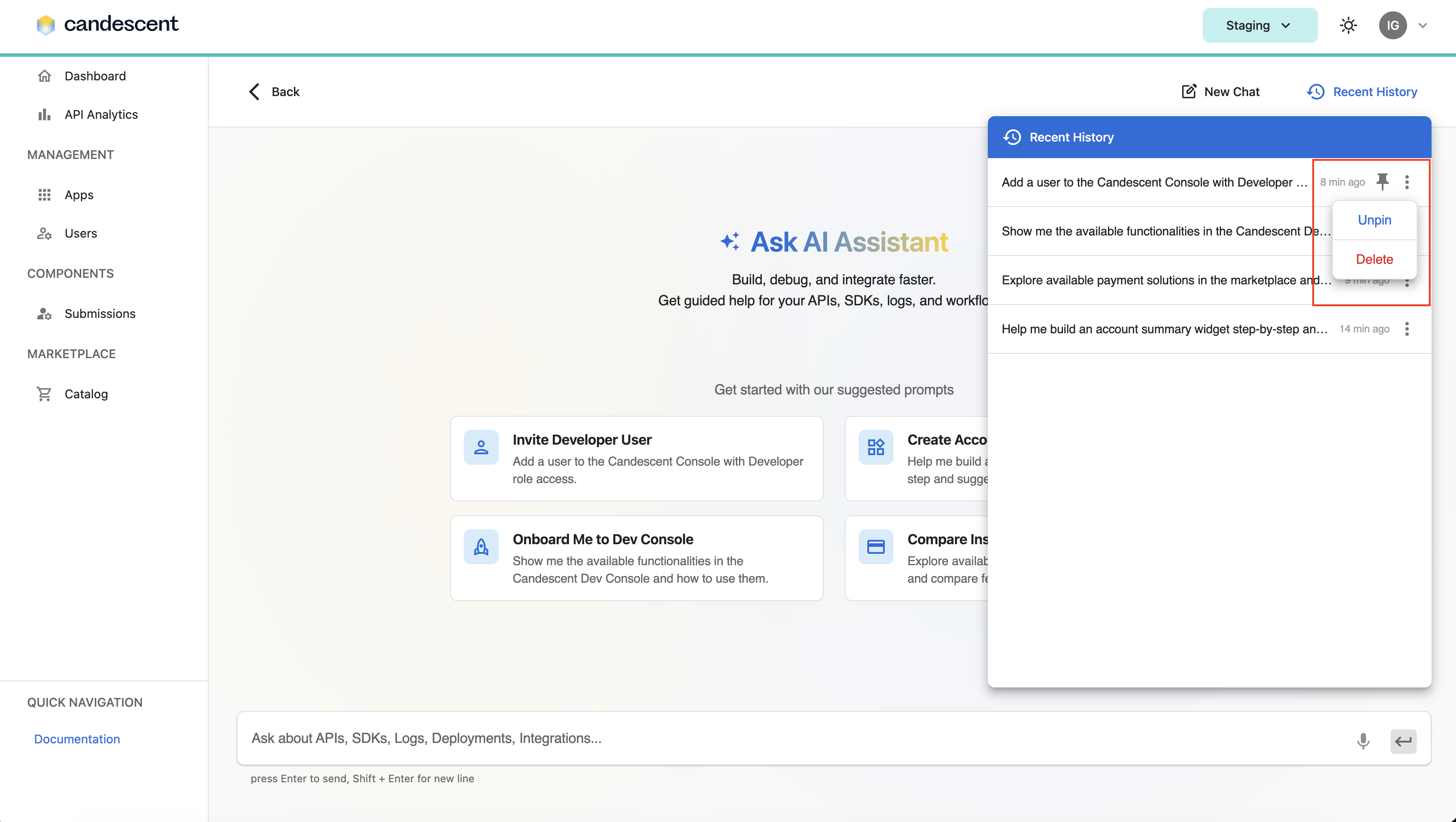
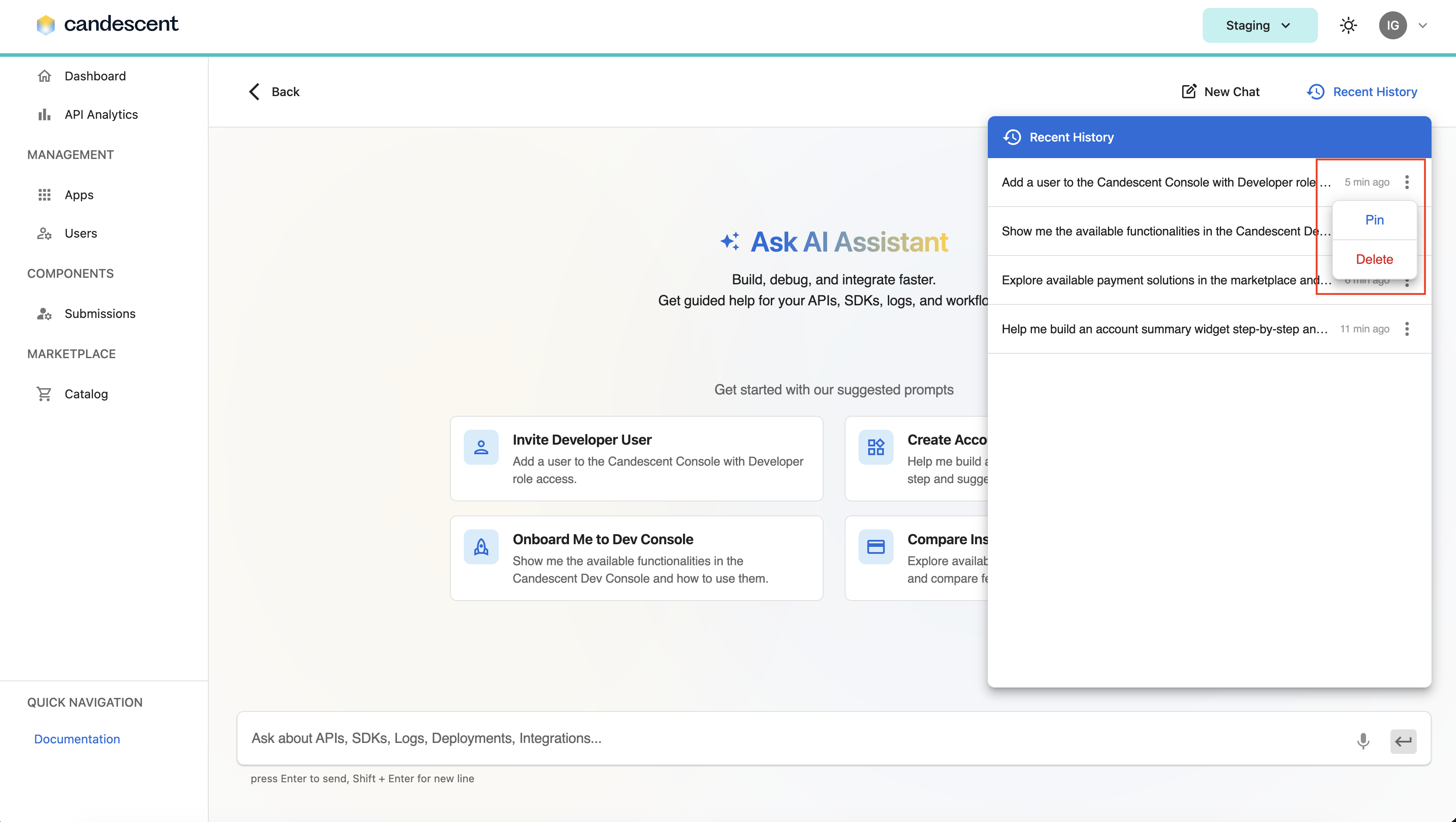
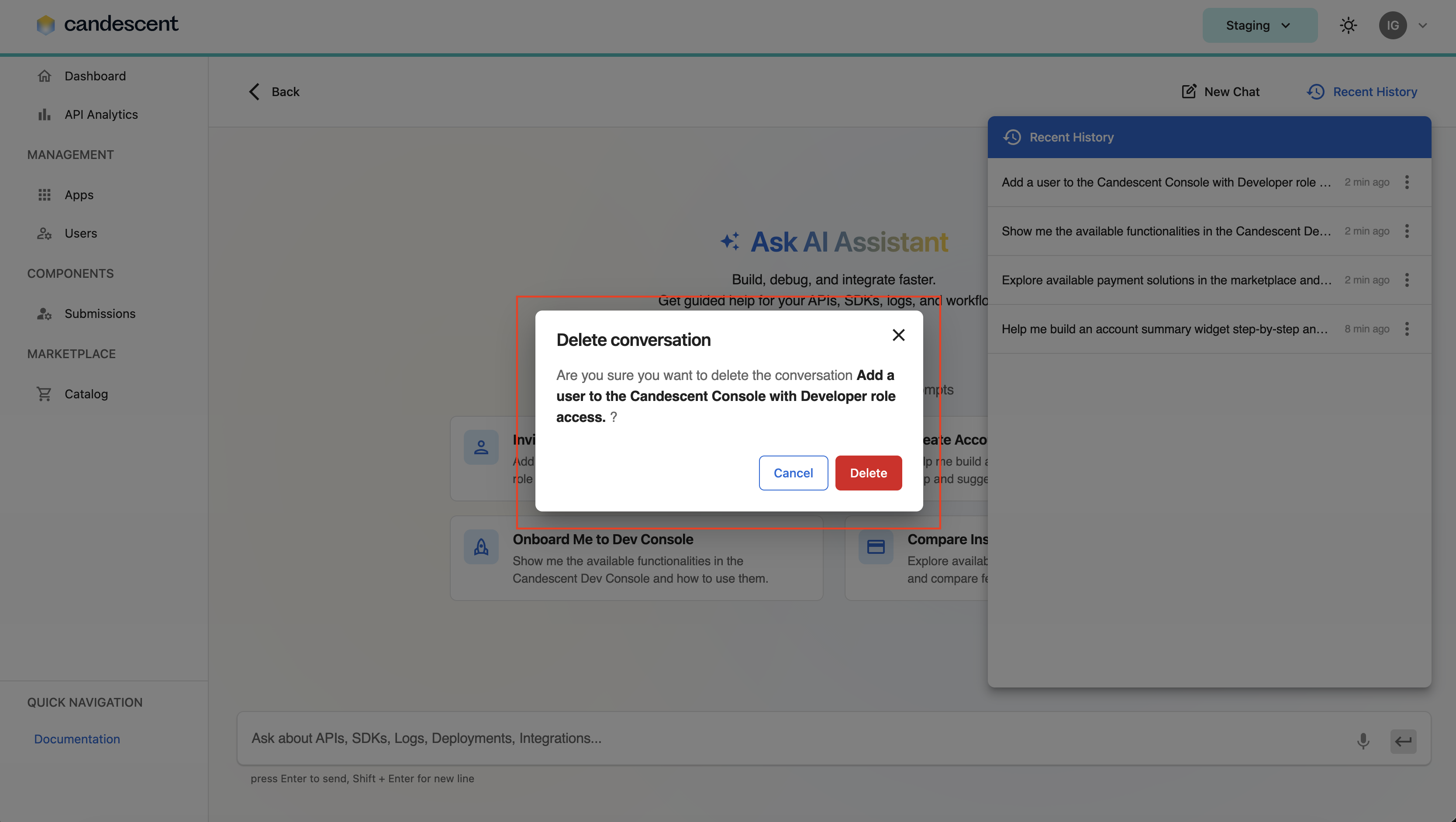
Deleting a Conversation
- Open the actions menu for the conversation.
- Click Delete.
- Confirm in the dialog.
- Recent history shows conversations from the last 30 days.
- When you reopen a conversation, only the most recent messages are loaded (older messages in that thread may not appear).
- Pinned conversations appear before unpinned conversations.
4.3 Common Use Cases
Onboarding a New Developer
- Open Ask AI.
- Click Onboard Me to Dev Console.
- Review the overview and follow next-step suggestions.
- Ask follow-up questions in the same chat.
Getting Help with APIs or Integrations
- Open the AI Assistant.
- Type a specific question in the composer.
- Press Enter to send.
- Use follow-up chips or type additional questions in the same thread.
Inviting a Team Member
- Open the AI Assistant.
- Click Invite Developer User.
- Follow the step-by-step guidance.
- Complete the action in the Users section as directed.
Comparing Marketplace Solutions
- Open the AI Assistant.
- Click Compare Instant Payment Solutions.
- Review the guidance.
- Navigate to the Marketplace Product Catalog to explore products in detail.
Resuming a Previous Conversation
- Open the AI Assistant.
- Click Recent History.
- Select the conversation from the list.
- Continue sending messages.
4.4 Quick Reference
| Action | Steps |
|---|---|
| Open assistant | Click the Ask AI floating button |
| Start new conversation | Click New Chat or select a suggested prompt |
| Send message | Type in composer → Enter |
| View past chats | Recent History |
| Pin conversation | Recent History → actions menu → Pin |
| Delete conversation | Recent History → actions menu → Delete → confirm |
| Return to console | Back |
5. Best Practices
5.1 Getting Better Answers
- Be specific about what you are trying to build, integrate, or troubleshoot.
- Stay in one chat thread for related follow-up questions.
- Use suggested prompts when unsure where to start.
- Verify documentation links before making production changes.
5.2 Conversation Management
- Use New Chat when switching to an unrelated topic.
- Pin conversations you plan to return to.
- Delete conversations you no longer need.
- Do not share sensitive information in chat messages.
5.3 Security Reminders
- The AI Assistant provides guidance; it does not replace your organization's security policies.
- Confirm permission-sensitive actions in the appropriate console screens.
- Report unexpected guidance to your administrator.
Never share passwords, secret keys, or other credentials in the chat.
6. Troubleshooting
6.1 Common Issues
Cannot Open the AI Assistant
Solutions:
- Verify you are logged in.
- Confirm your role includes access to the AI Assistant.
- Refresh the page and try again.
- Contact your administrator if the Ask AI button does not appear.
Cannot Send Messages
Solutions:
- You may have view-only access.
- Hover over disabled controls to view the access message.
- Contact your administrator to request full access.
Assistant Returns an Error or No Response
Solutions:
- Check your internet connection.
- Wait a moment and try again.
- Click New Chat and retry with a shorter question.
- Refresh the page and log in again, if needed.
Recent History Will Not Load
Solutions:
- Click Retry in the Recent History panel.
- Close and reopen the panel.
- Refresh the page.
Conversation Did Not Load Correctly
Solutions:
- Select the conversation again from Recent History.
- Verify the conversation is not older than 30 days.
- Click New Chat if the session cannot be restored.
7. Known Limitations (Current Release)
| Feature | Status |
|---|---|
| Voice input (microphone button) | Not yet available. |
| Copy, regenerate, or rate responses | Not yet available. |
| Streaming replies | The complete reply appears (text does not appear word-by-word as it is generated). |
8. Getting Help
| Need | Contact |
|---|---|
| Permission or access issues | Your organization's administrator |
| AI Assistant errors or outages | Your organization's support channel |
| Product Catalog or submission questions | Refer to the relevant Developer Console guides |
Next Steps
Continue to API Analytics to monitor API traffic, latency, and performance across your applications.